
How to Monitor WhatsApp Messages with FamiPatrol
1. Open your account and add a WhatsApp connection
Sign in to FamiPatrol and open Devices. Add the account connection you want to use, then open its QR setup page. If you cannot add a connection, check your available device slots before trying again.
Each connected account has its own archive. Select the correct device when reviewing messages so you do not confuse records from different connections.
2. Authorize the QR code with the account owner’s phone
Open WhatsApp on that phone, go to Linked Devices, and scan the QR code shown by FamiPatrol. Complete the authorization on the phone. If the QR code expires, refresh it and scan the current code.
“No extra monitoring app” describes the setup: FamiPatrol provides a web dashboard. It does not remove the need for WhatsApp on the account owner’s phone or permission to connect that account.
3. Wait for messages to synchronize
A successful QR connection is the start of the process. The dashboard needs synchronized records before it can display chat history.
Check the selected device’s connection and sync status. Initial history and attachment downloads can take time. The amount of history available depends on what the connected session supplies; FamiPatrol does not promise every message ever sent or an instant, complete copy of the phone.
4. Open Chats and choose a conversation
Open Chats for the selected device, choose an individual or group conversation, and read the available messages in context. Use the chat filters and message search to find records within the synchronized archive.
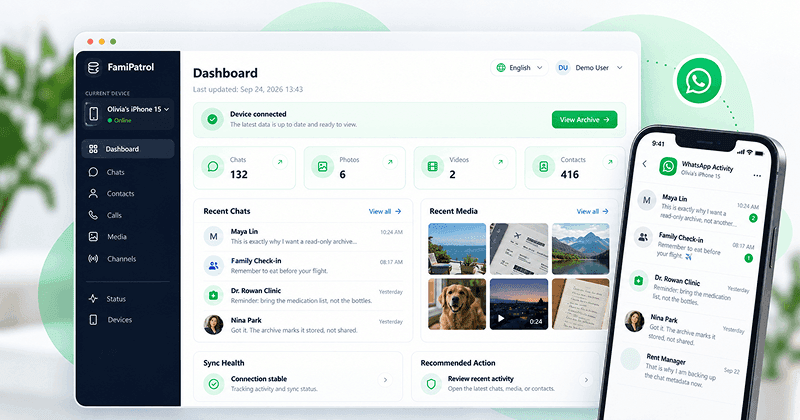
The dashboard is read-only. There is no reply composer, and reviewing the archive does not give you controls to send or edit WhatsApp messages.
5. Review group chats and shared attachments
Use the group filter to view available WhatsApp group chat history. Read surrounding messages before interpreting a single remark or attachment.
Available photos, videos, voice notes and documents can also be reviewed through the archive’s media views. An attachment record may arrive before its file is downloaded. If a file is unavailable, that does not mean the dashboard can recover it from another source.
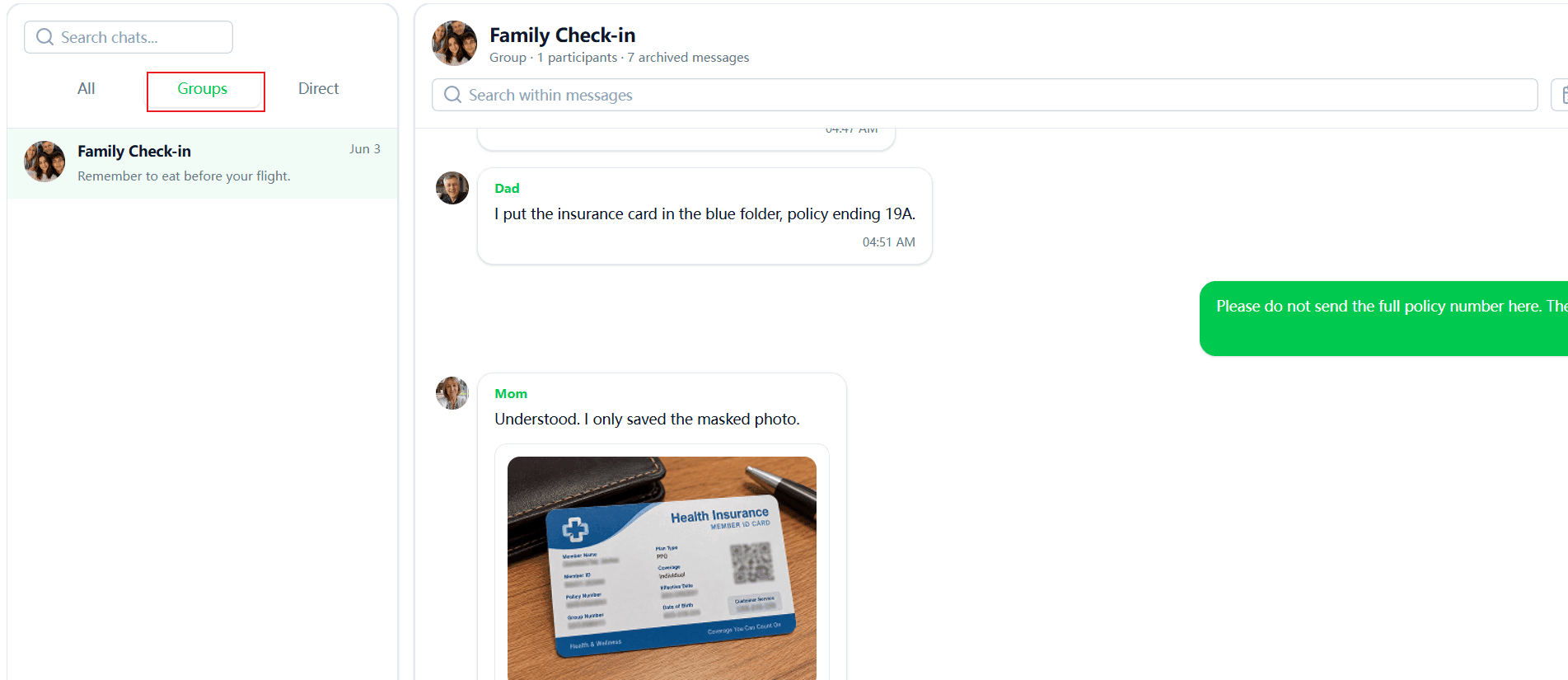
6. Check sync status before expecting newer messages
Return to the connection and sync status when you need newer records. Further updates depend on an active authorized session, successful synchronization and available storage.
If the session disconnects or expires, reconnect when prompted. Previously synchronized records and the current phone state are different things: a visible archive is not proof that new messages are still arriving.
What Can You View in WhatsApp Chat History?
| Record | What FamiPatrol can show | Limit to keep in mind |
|---|---|---|
| Individual messages | Available synced messages in their conversation | History is limited to what the connection supplies |
| Group chats | Synced group conversations | An archive does not guarantee complete group history |
| Photos and videos | Available downloaded media | Missing or unavailable files may not be playable |
| Voice notes | Available synced audio messages | Voice notes are not call recordings |
| Documents | Available document attachments | The attachment file must be available |
| Contacts | Synced names and available profile details | Contact presence does not prove a recent conversation |
| Call history | Supported call records and available metadata | No call audio or video recording |
For the full product scope, see WhatsApp monitoring features. For a fictional example before connecting your own account, explore the WhatsApp dashboard demo.
Why Are Some WhatsApp Messages Missing?
Start with the dashboard’s connection and sync information:
- Confirm the device. Make sure you selected the account whose chat you want to review.
- Check authorization. A disconnected session needs attention before new records can sync.
- Check sync progress. A connected account can still be waiting for records to arrive.
- Check available storage. Storage limits can affect synchronization and media downloads.
- Check the source history. A message unavailable to the linked session cannot be assumed recoverable.
If the problem continues, use the support center. Avoid reconnecting repeatedly without checking the status shown for the existing connection.
What Does WhatsApp Message Monitoring Not Include?
FamiPatrol does not provide deleted-message recovery, View Once capture, screenshots, keyword alerts or automatic content-risk detection. It does not track last seen, online presence, screen time or GPS location. It also does not offer bulk archive export.
An archived message can provide context for a conversation, but the dashboard cannot determine someone’s intentions or guarantee that it has all relevant records.
Frequently Asked Questions
Can I view WhatsApp messages from another device?
Yes. After the account is authorized and records have synced, sign in to FamiPatrol from a browser on another device to review the available archive. Setup and reconnection still require access to the account owner’s phone.
Can I monitor WhatsApp without installing an extra app?
FamiPatrol does not require an extra monitoring app on either phone. The WhatsApp account must still be authorized through the QR flow.
Does FamiPatrol show messages in real time?
It shows synchronized records. Update timing depends on the connection, synchronization and storage. There is no zero-delay guarantee.
Can I search messages that have not synchronized?
No. Archive search operates on available synchronized records. It cannot search inaccessible chats or restore missing messages.
Can a parent use this workflow?
Only for an account they own or are authorized to access. Read the parent’s WhatsApp review checklist before connecting a family account.